 Mehmood Ur Rehman Qureshi
Claude Code is good at reading files and running commands. It cannot see the dashboard you have open in Chrome, the GitHub settings page behind your login, or the admin panel that has no API. This guide shows how to give Claude Code browser access to the Chrome you already use, with your existing sessions, using MCP Browser Extension: an MCP server (@mehmoodqureshi/chrome-mcp on npm) plus a Chrome extension. It covers the exact claude mcp add command, loading the extension, pairing, allowlisting a domain, a first real task, and the problems people hit most.
The quickstart has the short version.
How Claude Code drives a browser through MCP
Claude Code talks to tools through the Model Context Protocol. A browser MCP server is a local process that exposes tools such as navigate, click and get_text. Most browser MCP servers start their own Chromium, which means a signed-out window and a fresh login for every site.
This one does not launch a browser at all. The server runs on your machine over stdio. A Manifest V3 extension inside your normal Chrome connects to it over a localhost WebSocket and carries out each call with Chrome's own extension APIs. A page the agent opens is the page you would see, signed in as you. The logged-in Chrome page explains the model in more detail. The extension is required, and it drives a real, visible Chrome window, not a headless one.
Step 1: Add the browser MCP server (claude mcp add)
Claude Code needs no config file for this. One command registers the server for every project on your machine:
claude mcp add chrome-mcp -s user -- \
  npx -y @mehmoodqureshi/chrome-mcp \
  --allow-domain example.com --enable-mutations --persist-token
What each part does:
- Everything before
--belongs to Claude Code. Everything after it is the server's own command line. Keep the--, or Claude Code tries to read--allow-domainas its own option. -s userregisters the server for all your projects. Use-s local(the default) for the current project only, or-s projectto write a.mcp.jsonyour team can commit.--allow-domain example.comis the domain allowlist. Replace it with the sites you actually want Claude to use. More on that below.--enable-mutationslets the agent navigate, open tabs, click and type. Without it the agent can only read.--persist-tokenkeeps the same token across restarts. Pairing survives restarts without it, since the extension fetches a new token by itself, but it does no harm.
Check that it registered:
claude mcp listchrome-mcp should be listed. It shows as connected once the server boots, even before the extension has paired. Node 18 or newer and Chrome 116 or newer are required. On Windows, put cmd /c before npx after the --.
Step 2: Install the Chrome extension
You have two options.
From the Chrome Web Store (recommended)
Install MCP Browser Extension from the Chrome Web Store listing. It is one click, needs no Developer mode, and Chrome keeps it updated automatically. Each Web Store release goes through review, so it can trail the npm package by a version. It pairs with any server version and skips features it predates.
From the bundled folder (for developers)
The extension also ships inside the npm package, which is mostly useful if you are working on the extension itself. Every time the server boots, it copies the extension to ~/chrome-mcp-extension on macOS and Linux, %USERPROFILE%\chrome-mcp-extension on Windows. To create the folder without starting a client, or to print its path:
npx -y @mehmoodqureshi/chrome-mcp@latest --extension-pathLoad that folder from chrome://extensions with Developer mode on. It pairs itself from a pairing.json file the server writes there, but it does not update through Chrome, so for everyday use the store copy is the better choice.
Step 3: Pair the extension
Start a Claude Code session, or run /mcp in an existing one, so the server boots at least once. On every start it registers a small native messaging helper with Chrome, which only this extension can reach. That is what makes pairing one click.
Chrome hides new extensions behind the puzzle-piece button, so pin MCP Browser Extension first. Then click its toolbar icon and press Connect. The first time, Chrome asks for one permission, "communicate with cooperating native applications". Allow it, and the extension fetches the port and token from the server by itself. There is nothing to copy or paste. A fresh install also opens the extension's Settings page with the same button.
If the server later changes its token, the extension picks up the new one on its own, so pairing survives restarts without --persist-token (the flag still works if you already use it).
The popup is also where you check on things: the connection status, whether the current site is allowed (with an Allow button if it is not), sites that were recently blocked, and your allowed sites.
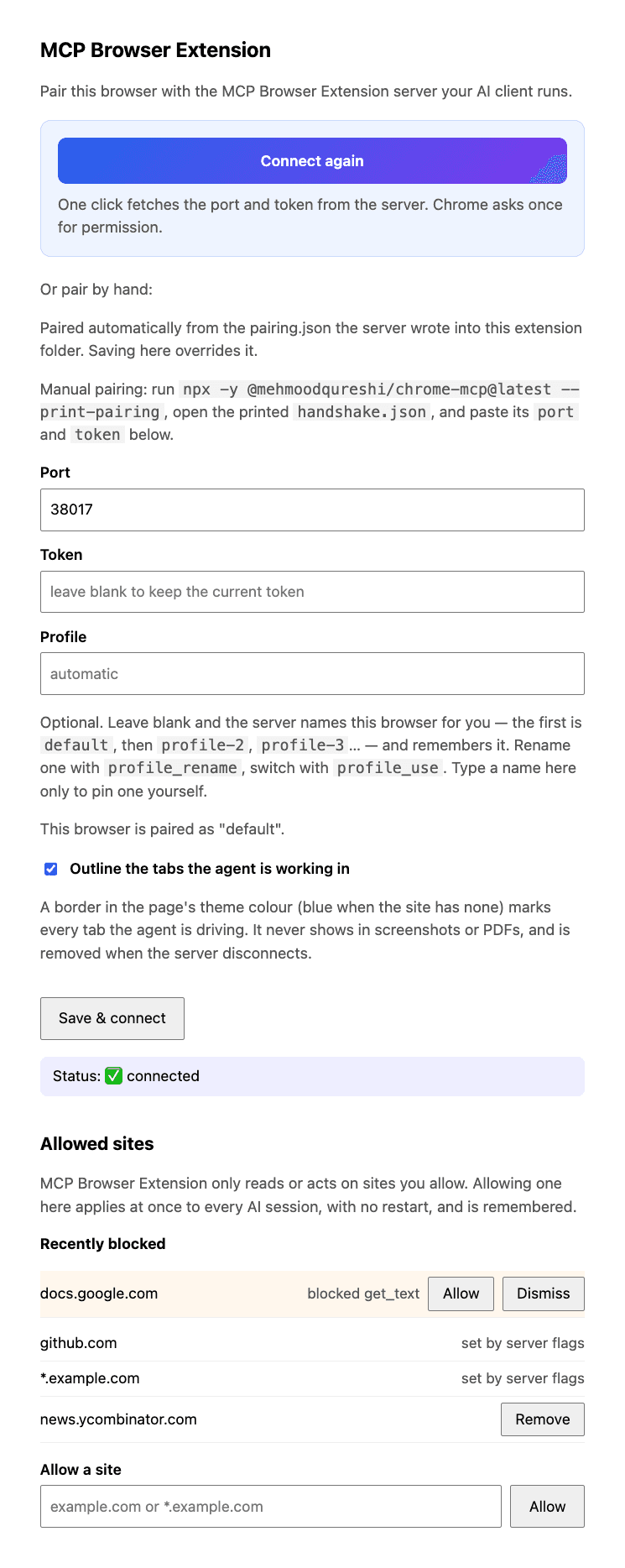
The extension's Settings page, rendered from the current build with sample data. Connect sits at the top; the port and token fields below it are only for the manual fallback, and a recently blocked site gets an Allow button.
The badge on the toolbar icon tells you where things stand.
| Badge | Meaning |
|---|---|
| green dot | paired and connected |
| yellow dots | connecting |
| grey circle | not paired yet |
| red exclamation mark | token rejected; it fetches the new token and re-pairs by itself |
If Connect reports a problem, or you run the server with --no-native-host, pair by hand: run npx -y @mehmoodqureshi/chrome-mcp@latest --print-pairing, open the extension's Settings, and paste the port and token from ~/.chrome-mcp/handshake.json. Do not paste the token anywhere else.
You can also hand the whole setup to Claude Code itself with the prompt on the agent setup page. It stops for the two actions that must happen inside Chrome.
Step 4: Allowlist the domains you need
The server is deny-all by default. With no flags, the agent can read nothing, click nothing, run no eval, download nothing and upload nothing. You open it up one domain at a time:
claude mcp remove chrome-mcp -s user
claude mcp add chrome-mcp -s user -- \
  npx -y @mehmoodqureshi/chrome-mcp \
  --allow-domain github.com \
  --allow-domain "*.vercel.app" \
  --allow-domain localhost \
  --enable-mutations --persist-token
Rules worth knowing:
- Each
--allow-domainopens one host.*.example.comcovers a domain and its subdomains. - If you paste a full URL or a
host:port, the scheme, port and path are stripped.localhosttherefore covers every local port.127.0.0.1is a different host and needs its own entry. - Reads are gated as well as clicks. The extension re-checks the same policy on its side.
eval, downloads and uploads are separate opt-ins (--unsafe-enable-eval,--enable-downloads,--enable-uploads).--unsafe-all-domainsexists and is named that way on purpose.
Password field values are never returned, --redact scrubs tokens and keys out of page reads, and every call is logged with its URL and verdict. The security page covers the details.
Step 5: Run a first real task
Start a new Claude Code session (or /mcp to reconnect) and check the chain first:
Call chrome_status, then tabs_list, and tell me which tabs you can see.chrome_status should report the extension as connected, and tabs_list should return tabs from your real Chrome. Then try something useful on an allowlisted domain:
Open https://github.com/notifications in a background tab, read it,
and list the five most recent notifications with repo and title.
Claude will typically call tab_new, then read_as_markdown, and answer from your signed-in page. Then confirm the gate works by asking it to open a site you did not allow. The call should fail with a message that starts with Blocked: and names the flag that would allow it. That refusal matters more than the happy path.
Two patterns that work well from Claude Code:
- Check what you just built. Allow
localhost, then ask Claude to open your dev server and click through a flow after a code change. - Read many pages at once. The
batchtool runs many calls in one request. Open several PRs in background tabs and read them together.
The full list of 40 tools is in the tools reference, and the guides cover batch, iframes, auth walls and the --tools flag that trims the catalog to save context.
Test a local web app and read console errors
Reading the page tells Claude what it looks like after something failed, not why. Add --enable-observers and allow localhost, and Claude can see the console and the requests your app made:
claude mcp remove chrome-mcp -s user
claude mcp add chrome-mcp -s user -- \
  npx -y @mehmoodqureshi/chrome-mcp \
  --allow-domain localhost \
  --enable-mutations --enable-observers --persist-token
Then ask for the check after a code change:
Open http://localhost:3000/signup, fill in the form and submit it.
Then call console_logs with level "error" and network_log with failedOnly true,
take a screenshot, and tell me what broke.
console_logs returns console output and uncaught errors, network_log returns the fetch and XMLHttpRequest calls with status and duration, and screenshot captures the page or one element. Observers are off by default because the hook patches console, fetch and XMLHttpRequest on every allowlisted page, so keep the allowlist to your dev server while they are on. The observers reference lists every argument.
Claude Desktop: connect it to Chrome
Claude Desktop uses the same server with a JSON entry in claude_desktop_config.json:
{
  "mcpServers": {
    "chrome-mcp": {
      "command": "npx",
      "args": [
        "-y",
        "@mehmoodqureshi/chrome-mcp",
        "--allow-domain",
        "example.com",
        "--enable-mutations",
        "--persist-token"
      ]
    }
  }
}
Restart Claude Desktop after editing. The extension and pairing steps are identical, and both hosts can run at the same time against the same Chrome.
When another tool is the better choice
Claude Code has a first-party Chrome integration. You start it with claude --chrome, it works with the Claude in Chrome extension, and it also shares your browser's login state. It needs a direct Anthropic plan (Pro, Max, Team or Enterprise) and a /login sign-in. If you have that, it is worth trying first. MCP Browser Extension is a plain stdio MCP server, so it does not depend on how you sign in, and the same setup works in Cursor, Windsurf and Claude Desktop. Its focus is the deny-all allowlist, redaction and audit log.
Other projects also reuse a logged-in browser, including hangwin/mcp-chrome and Browser MCP. If you are writing end-to-end tests or need Firefox or WebKit, Playwright MCP is the better fit. The compare page goes through the trade-offs.
If you use Cursor, the setup is almost the same; see Give Cursor a real browser with MCP.
Troubleshooting
The server is not listed or will not start
Run claude mcp list. If chrome-mcp is missing, the add command failed, often because the -- separator was dropped. On Windows, check that the command uses cmd /c npx. After upgrading the package, run /mcp in the session to reconnect. No restart is needed.
The badge stays grey
The extension is not paired yet. Make sure a server has started (start a session or run /mcp), then click the toolbar icon and press Connect. If Connect reports a problem, use the manual Settings fallback above.
Every call says Blocked
The domain is not on your allowlist. Add --allow-domain <host> and reconnect. If navigate or tab_new is refused on an allowed domain, you probably left out --enable-mutations.
A page shows a sign-in screen
Your session expired. auth_check reports this as [AUTH_REQUIRED] instead of a timeout. Sign in again in the same Chrome and retry. The server never signs in for you.
FAQ
Can Claude Code use my existing Chrome login?
Yes. The extension runs inside the Chrome you already use, so any site you are signed into is signed in for the agent too. No credentials or cookies go into a config file.
What is the exact command to add the browser MCP server to Claude Code?
claude mcp add chrome-mcp -s user -- npx -y @mehmoodqureshi/chrome-mcp --allow-domain example.com --enable-mutations --persist-token. Replace example.com with the domains you want to allow.
Why can Claude not open any page after setup?
The server is deny-all by default. Add an --allow-domain for each site, and add --enable-mutations if Claude needs to navigate, open tabs, click or type.
Is this the same as Claude in Chrome?
No. Claude in Chrome is Anthropic's own extension, started from Claude Code with claude --chrome. MCP Browser Extension is a separate open-source MCP server and extension that works with any MCP host. Claude in Chrome vs Chrome MCP compares the two in detail.
Does it work on Windows?
Yes, natively, without WSL. The MCP host must launch the server through cmd /c npx because npx is a batch shim on Windows.
Set it up in a few minutes