 Mehmood Ur Rehman Qureshi
Two tabs in the same Chrome profile are not two separate proxy environments. They share the profile's proxy setting and browser session storage. If your agent tasks need different proxy routes, organize them into different Chrome profiles before starting the work.
MCP Browser Extension 0.9.22 supports that workflow with a user-configured proxy in each profile and a read-only proxy_status tool. You can pair several browsers with the local server, switch the active one with profile_use, and check its route before opening a site. The important step is checking that the selected browser is actually the one intended for the task.
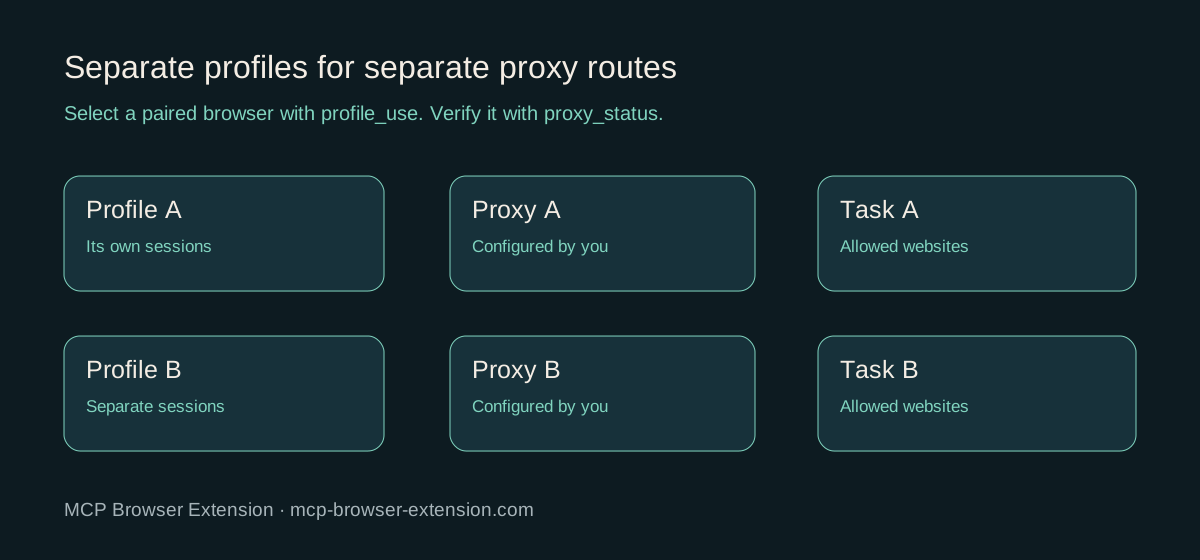
The unit of separation is the Chrome profile
A Chrome profile contains browser state such as cookies, site storage, and installed extensions. A separate profile can hold a different signed-in session without making you log out of the first profile. Chrome's proxy API configures browser settings; it does not provide a proxy selector for an individual tab.
MCP Browser Extension follows that boundary. You enter a proxy in the extension installed in the relevant profile. An agent task in that profile uses its browser state and routing configuration. Opening a second tab does not create a second IP route, and changing the profile's proxy can affect tabs that were already open.
A proxy route also does not create a separate website account. A site can recognize the session's cookies and account regardless of the network address. Avoid describing this workflow as anonymous browsing or a way to evade account rules. Its practical purpose is to make an authorized task's session and route predictable.
Plan profiles around real task boundaries
Start with a simple table rather than many nearly identical profiles. For example, you might use a primary testing profile with one approved endpoint and a second regional testing profile with another. Record the intended website account and proxy route for each. Give them distinct names that you can recognize in a tool response.
| Paired profile name | Session purpose | User-configured route | Check before work |
|---|---|---|---|
| qa-primary | Primary test account | Approved proxy A | Connection, proxy control, exit lookup |
| qa-regional | Regional test account | Approved proxy B | Connection, proxy control, exit lookup |
These names and endpoints are illustrative. They are not profiles or proxies supplied by the extension. Use your own authorized sessions and endpoints, and keep endpoint credentials outside the table if the document will be shared.
Keep normal browsing in a separate profile if you are experimenting with proxy configurations. A broken proxy in your agent profile should not interrupt tabs in the profile you use for email or meetings. Profile separation is useful even for a single proxy because it makes the affected browser easier to identify.
Pair each browser and name it clearly
Install the current MCP Browser Extension in each intended Chrome profile. Start the local MCP server and pair from the extension's toolbar popup. Set a distinct browser profile name in its Settings so the server can distinguish the paired browsers.
The quickstart covers pairing. Check the extension version before looking for Proxy: the feature is in 0.9.22, and the Chrome Web Store version may differ until its review finishes. Loading the release's bundled extension and installing the Store version are different installation paths.
Do not give two paired browsers the same name. The release includes handling for a browser whose name has been taken, but clear names prevent the conflict in the first place. A command-line profile choice selects a paired browser; it does not create a Chrome profile for you.
Once paired, sign in to the authorized test account through Chrome. The MCP client works with that profile's existing session. It should not need the website password in its chat context. If the session expires, sign in again in the browser and retry the task.
Configure proxies before handing over the task
In each profile, open the extension's Settings and configure its Proxy section. Select the endpoint protocol, enter host and port, and save. Add credentials when required. Use HTTP or HTTPS for username/password authentication; Chrome does not support authenticated SOCKS proxies through these controls.
The detailed proxy setup guide explains the fields, IP checks, WebRTC option, and troubleshooting. The proxy configuration is a user action. The MCP client can inspect status, but it cannot apply a new endpoint or retrieve the proxy password through proxy_status.
Check each profile independently before a live task. A valid address in a text field does not prove that the endpoint is reachable. Confirm Chrome can load the target site and that the IP lookup matches the route you expect. An IP-geolocation response is an estimate, not a promise that every website will show a particular region.
Switch, verify, then navigate
Ask your MCP client to select the intended profile and check the connection before browsing:
Call chrome_status and show the paired profile names.
Use profile_use to select qa-regional.
Call chrome_status again, then proxy_status.
Report whether the browser is connected, the proxy is enabled,
and the exit-IP lookup succeeded. Do not navigate yet.
Use the exact name returned by the connection check. If it is absent, resolve pairing before continuing. If proxy_status reports no proxy, the agent should say so rather than assume the profile name guarantees a network route.
After verifying the environment, open a new task tab with tab_new. Avoid reusing a tab identifier from another profile. A tab belongs to a particular browser instance; switching the active profile does not transfer that tab or its cookies into the new browser.
Then run the authorized work on sites allowed by the server's policy. For example, read a regional test page, inspect its visible shipping options, and save the observed result. Report what the page actually showed. Do not infer a successful regional test solely from the IP lookup.
Proxy state and site permissions are different checks
A profile can have a working proxy while the MCP server refuses a target site. That is expected if the site's domain is not allowed. Conversely, an allowed site can fail to load when the configured proxy is unavailable. Use the error context to distinguish permission failures from network failures.
Keep an explicit domain allowlist in your MCP configuration. Mutation, download, upload, observer, and eval capabilities remain their own opt-ins. Adding a proxy does not enable any of them. The security documentation explains those boundaries.
The loopback connection between extension and local MCP server is intentionally bypassed. That keeps browser pairing independent of the remote endpoint. The extension setting does not automatically proxy the Node server, your Terminal, or every application on the Mac.
Coordinate shared sessions carefully
Several clients can connect to one HTTP or tunnel server. In that server process, the active workspace and profile selection are shared state. If one session switches profiles during another session's task, the next tool call can target a different environment than expected.
Coordinate profile changes and finish the verification sequence immediately before work. For simultaneous tasks that must remain independent, use deliberately separated server and browser setups rather than assuming a profile name is a per-client routing guarantee. Separate Chrome profiles alone do not remove every shared-server interaction.
Keep a short task log with the chosen profile, whether a proxy was enabled, and whether the IP lookup succeeded. Avoid storing proxy passwords, private endpoint addresses, or full IP responses in public reports. The useful evidence is the verified environment and page result, not a dump of network credentials.
Recover without hiding the failure
If a proxy fails, the fixed proxy rule has no additional direct fallback for the requests it routes. A page can show a proxy error while the extension remains paired. Stop the task, inspect the configuration, and repeat the status check after correcting it.
If another extension or managed policy controls Chrome's proxy settings, the control field helps reveal that conflict. Review it before concluding that the saved endpoint is effective. Avoid repeatedly changing profiles as a substitute for diagnosing the failing route.
Disabling MCP Browser Extension's proxy clears its override. Chrome can then use the system configuration or another applicable controller, so check again rather than assuming a particular direct IP. Recovering the network route and restoring the intended test session are separate actions.
FAQ
Can two tabs in one profile use two proxies?
Not through MCP Browser Extension's profile proxy feature. Configure separate Chrome profiles when tasks need separate routes.
Does profile_use create a Chrome profile?
No. It selects an already paired browser by name. Create the Chrome profile, install the extension, and pair it first.
Can the agent read the proxy password?
The proxy_status tool omits the username and password. It reports configuration state, endpoint address, effective control, WebRTC state, and exit lookup results.
Does a regional IP guarantee regional page content?
No. Websites may use account settings, cookies, language, location permissions, and their own regional logic. Check the actual page output for the task.
Is profile selection independent for every MCP client?
Clients connected to the same HTTP server share that process's active profile state. Coordinate switches and verify the selected browser before work; do not assume per-client proxy isolation.
Set it up in a few minutes