 Mehmood Ur Rehman Qureshi
AI form filling is useful when the information already exists, but someone still has to copy it into a website. A support record might supply a reference and notes. A spreadsheet might hold a location and a selection. An agent can read that source, inspect the destination, and put the values into the matching controls.
The useful result is a form whose values have been checked. A successful typing call alone does not establish that the right field changed, that a checkbox has the requested state, or that the website saved anything. Treat preparation, verification, and submission as separate steps.
MCP Browser Extension gives an MCP agent tools for those browser steps inside your existing Chrome. This guide explains the workflow and the mistakes to check. The CSV form walkthrough shows a recorded example on Selenium's public test page, using invented data and stopping before Submit.
What the agent does, and what the extension does
The agent interprets your instructions and maps source information to page controls. The extension carries out explicit browser tool calls. It does not independently infer that a spreadsheet's “location” column means a particular city dropdown, and fill_form is not a CSV importer.
For a small task, paste the source row into the prompt. For a local file, the host needs its own file-reading capability. Reading a CSV locally is separate from uploading a file to a website. A form can be populated from file contents without attaching the file to the page.
The browser tools have distinct jobs:
| Tool | Use it for |
|---|---|
snapshot | Identify controls and inspect their current state |
get_html | Inspect the relevant form when names or selectors are unclear |
fill_form | Set several fields using a selector-to-value mapping |
select_option | Choose an option from a native HTML select |
type | Enter text into a particular control |
screenshot | Preserve a visible view for review |
See the interaction reference for the arguments. Custom dropdowns may require clicks and another snapshot; a control that looks like a select is not necessarily an HTML select.
Connect Chrome with the permissions the task needs
Install the extension and register its server using the quickstart. For the public test form used here, the server command is:
npx -y mcp-browser-extension@latest \
  --allow-domain www.selenium.dev \
  --enable-mutations \
  --persist-token
Place that command and its arguments in your MCP host's server configuration. The configuration key remains mcp-browser-extension, and the npm package remains mcp-browser-extension. Neither name changes to match the product's display name.
Current releases request email verification through an MCP input prompt on first browser-tool use. Open the emailed sign-in link and let the waiting tool continue. This access check is separate from pairing Chrome. Use a host that supports the prompt, then follow the extension's Connect flow if the browser is not paired.
Start with chrome_status. If Chrome is paired under a different profile name, use the profile named in its setup instructions. If it reports no paired browser, finish pairing before attempting the form. Open an agent-owned background tab with tab_new, using active: false.
--enable-mutations permits the navigation and interaction needed here. The allowlist limits the destination host. Downloads, uploads, and JavaScript evaluation have their own capabilities; ordinary text entry does not require enabling all of them. The security guide explains these controls.
Give the agent a mapping and a stopping point
A useful prompt says where the data comes from, what each ambiguous field means, and what completion looks like. For example:
Open https://www.selenium.dev/selenium/web/web-form.html
in your own background tab.

Use this source data:
record: QA-1042
notes: Review this draft before submission.
city: Seattle
choice: Two

Map record to Text input, notes to Textarea, city to Dropdown
(datalist), and choice to Dropdown (select).

Leave all other controls unchanged. Read the values back and
show me a screenshot. Stop before Submit; do not press Enter
in a field or submit the form.
This removes a common ambiguity: the page's label “Text input” does not tell the agent what business data belongs there. In an actual administrative form, use its real labels and explain any uncertain mapping. If a required value is missing, ask the agent to report it instead of inventing a plausible answer.
Also distinguish an instruction from a capability restriction. “Stop before Submit” is a task instruction. Omitting submitSelector from fill_form prevents that call from requesting submission, but an agent with click permission could still make a separate submit click. The domain allowlist is not a special review gate for one button.
Fill the controls using their actual structure
Inspect the form first. A snapshot provides references, but some pages expose weak or empty accessible names. In that situation, read the form's HTML and use selectors grounded in the inspected markup. Do not assume that #email exists merely because an Email label appears on screen.
On the Selenium page, these are real field names:
{
  "fields": {
    "[name=\"my-text\"]": "QA-1042",
    "[name=\"my-textarea\"]": "Review this draft before submission.",
    "[name=\"my-datalist\"]": "Seattle"
  }
}
Pass that object to fill_form, together with the tab ID returned by tab_new. There is no submitSelector. For the native dropdown, call select_option with:
{
  "selector": "[name=\"my-select\"]",
  "values": ["Two"]
}
These examples are tool arguments, not commands to paste into a terminal. Your agent sends them through the MCP connection.
For checkboxes, inspect the current checked state and click only when it differs from the requested state. Do not assume a boolean entry in fill_form is an idempotent state setter: in our repeat run, those entries toggled controls that already matched the source, and the readback caught the mismatch. When a group uses the same name on several elements, inspect their individual IDs or references before targeting them.
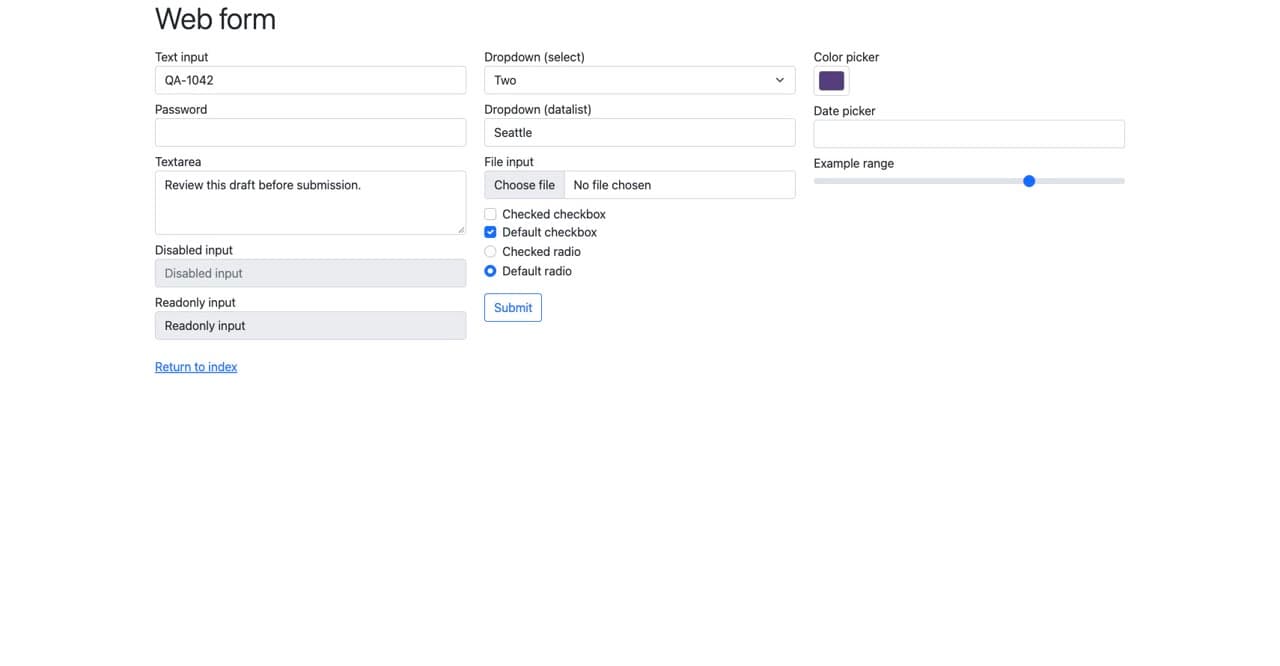
The recorded example fills eight controls. This guide's shorter prompt changes only the four mapped fields. The screenshot contains synthetic data on a public test page.
Verify the form before calling the task finished
Read the controls again after filling. Check three different things: the target, the value, and the state.
For a select, the visible label and stored value can differ. In the recorded example, the label is “Two” and the value is 2. That is an expected mapping, not a mismatch. For a checkbox, value: "on" does not establish that it is checked; the checked state must be inspected separately. Radio buttons also need a state check across their group.
Keep a small comparison table in the handoff: source value, destination, observed result. Report missing or ambiguous values explicitly. A screenshot helps the reviewer see the form, while the structured readback catches details that are hard to read at video size.
Do not label an unsubmitted draft “saved.” Some sites autosave individual edits, while others wait for a submit action. Stopping before Submit describes the action boundary you followed; it does not guarantee that the website made no network requests while fields were edited. Learn the destination's behavior before using this workflow with real records.
Handle forms that behave differently
If a value disappears after entry, the page may use a controlled component that expects browser input events. The documented type tool supports trusted: true for real keystrokes. Try the appropriate interaction and verify the result again. Do not repeatedly fill the whole form and assume one attempt eventually worked.
For a multi-page form, inspect each step after navigation. References and available choices can change. Ask the agent to stop at an unexpected question, validation message, login wall, or final confirmation. Use synthetic records for your first trial so mistakes are easy to recognize and remove.
For repeated regression testing, keep a deterministic test suite alongside exploratory agent checks. One successful form preparation demonstrates that particular page state and dataset. It does not establish that every browser, validation rule, or future page version behaves the same way.
FAQ
Can an AI agent fill a web form without submitting it?
Yes. Tell it to prepare the fields, read them back, and stop before submission. With MCP Browser Extension, omit submitSelector from fill_form and instruct the agent not to make a later submit click or press Enter in a field. Review the destination's autosave behavior separately.
Can it fill forms from Excel or CSV?
An agent can map supplied spreadsheet data to browser controls. The MCP host must be able to read the file, or you can paste a row into the prompt. The extension's fill_form tool accepts selector-to-value mappings; it does not parse Excel or CSV files itself.
Does it work with checkboxes and dropdowns?
The tools can interact with checkboxes and choose native select options. Inspect a checkbox's current state, click only if it needs to change, and check the result. Custom widgets may require a sequence of clicks instead of select_option.
Can it use a form behind my existing login?
The extension operates in the Chrome profile you pair, including that profile's existing sessions. You still need to allow the destination and enable the needed actions. The logged-in Chrome guide explains session access. This article's recorded example uses a public page with no login.
Set it up in a few minutes