 Mehmood Ur Rehman Qureshi
A browser tunnel makes an MCP server reachable from another client. It does not tell you what that client should be allowed to do. With MCP Browser Extension, the useful questions are separate: who holds the remote key, which page hosts the server permits, and which browser capabilities are enabled for the task.
Start with a small task and make each of those choices explicit. For example, checking a release heading needs access to one public documentation host and a way to open a background tab. It does not need arbitrary JavaScript, downloads, uploads, or access to every signed-in site in the browser.
This guide uses the actual tunnel checks recorded on 14 October 2026. The tunnel setup walkthrough covers starting the connection. The security reference covers the product's policy model in more detail.
Separate identity, page access, and actions
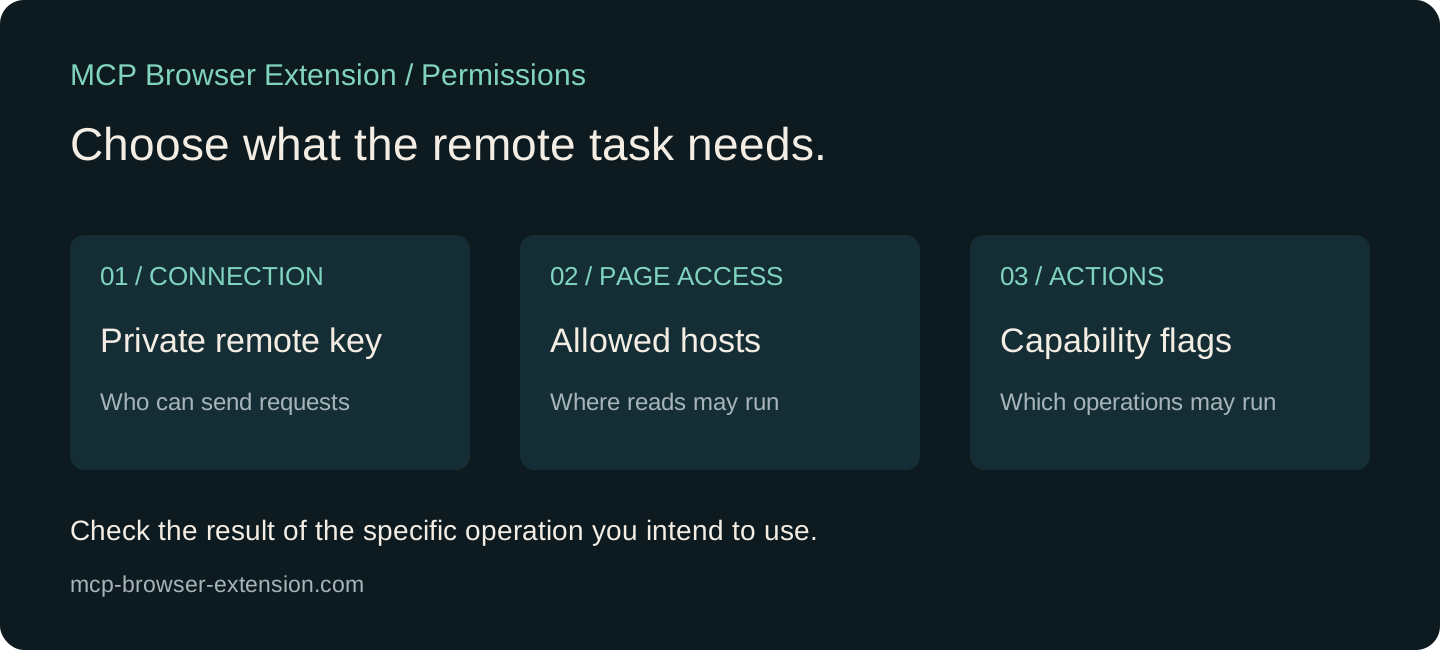
The remote key answers who may send a request to this server. The complete connector URL includes that key in its path, or a compatible client can send the key as an authorization header. This implementation uses a shared access key. It is not a dashboard for giving each teammate a different account and role.
The domain allowlist answers which hosts a URL-gated operation may access. The default list is empty. Add a host with --allow-domain when the task needs it. Wildcards intentionally broaden that scope, so a single documentation host is a clearer starting point than every subdomain of a large service.
Capability flags answer which kinds of actions are available. Reading content, clicking a button, evaluating JavaScript, and uploading a local file are different operations. Giving an agent permission to perform one does not establish that the others are required. When a task fails because a capability is off, identify the operation before expanding the configuration.
Choose permissions from the requested outcome
Consider this task: “Read the newest release heading from the public changelog and return its version and date.” One suitable starting command is:
npx -y @mehmoodqureshi/chrome-mcp@latest \
  --tunnel \
  --allow-domain mcp-browser-extension.com \
  --enable-mutations \
  --redact
Why enable mutations for a reading task? The agent has to create or navigate a tab before it can read the page. That browser action is a mutation. Once a suitable tab already exists, the content-reading operation itself does not require permission to type into its forms.
--redact adds pattern-based filtering for secret-shaped strings in page reads. It is useful additional filtering, not permission to read private material carelessly. Password values are excluded separately. A screenshot can still show sensitive visible content, so review screenshots before including them in a report or video.
For the task-list smoke test, the public demo host also needs to be allowed. Clicking checkboxes and typing task names require mutations. That task still does not need JavaScript evaluation, file transfers, or browser cookies as an output.
| Task requirement | Relevant setting |
|---|---|
| Read a particular site's page | --allow-domain for that host |
| Open tabs, navigate, click, or type | --enable-mutations |
| Evaluate page JavaScript | --unsafe-enable-eval |
| Download files | --enable-downloads |
| Upload files | --enable-uploads, with a suitable --uploads-dir |
| Inspect optional console/network observers | --enable-observers |
The tools reference documents the actual tool arguments. Keep the task prompt equally specific: name the page, the requested fields, the expected output, and whether submitting a form is authorized.
Test a refused read as well as a successful one
A successful page read proves that something is allowed. It does not prove that something else is refused. After verifying the intended host, check a harmless public page outside the configured list and inspect the result of the reading operation.
In the recorded run, the remote session allowed mcp-browser-extension.com and demo.playwright.dev. A get_text request for example.com returned [POLICY_DENIED], named the requested operation, and listed the allowed hosts. No page content was returned in that result.
There was a separate observation: tab_new could open the example.com page in this session, which shared a browser bridge with an existing local session. The subsequent read was blocked. We therefore do not describe this run as proof that every tab-opening action is prevented outside the remote allowlist. Tab creation and page reading are different checks, and the result should name which one was actually tested.
That distinction is useful when reviewing an agent report. “A tab opened” is not the same as “the agent could read the page.” Likewise, a generic tool response saying an input action ran is not evidence that a web application accepted the change. Read the resulting page state and preserve the refusal or result in the task log.
Keep the connector private and revoke it deliberately
The path-bearing connector URL is a credential, even though it looks like an ordinary link. Share it only with the client configuration that needs it. Do not put a real connector in a tutorial command, terminal recording, thumbnail, or support screenshot. Use a visibly marked placeholder when explaining its structure.
To invalidate the existing remote key, stop the server and restart with key rotation:
npx -y @mehmoodqureshi/chrome-mcp@latest \
  --tunnel \
  --rotate-remote-key \
  --allow-domain mcp-browser-extension.com \
  --enable-mutations
Previous key-bearing requests will no longer authenticate. Update clients using the newly printed connection details. A Quick Tunnel's hostname also changes between starts, so record which part changed when troubleshooting: the network address, the remote key, or the paired browser connection.
Stopping a tunnel cuts off that route. It does not undo browser actions already completed. If the task submitted a form or changed application state, review that application's result separately. Network access, credential revocation, and application rollback are different responsibilities.
Keep a record that another person can check
A useful evidence record contains the source URL, the tool called, the visible result, and the scope of the check. It should not contain the live remote key. For a task-list test, “two active items remained after reload” is more useful than “the browser worked.” For a page read, include the observed version and date rather than a generic success flag.
The extension's task workspace stores artifacts such as screenshots and call history. Review them before sharing: page text and local paths may be appropriate for a private diagnosis but unnecessary in a public post. The recorded examples on this site use public pages and synthetic task names, so the demonstration does not require anyone's private account data.
A narrow successful test is still a narrow test. The recording used an SDK client on the same Mac through a public HTTPS tunnel. It did not verify every hosted client's permissions interface, a separate phone connection, or an organization-wide access policy. Repeat the relevant check with your actual client before relying on that workflow.
FAQ
Does a private connector URL replace the domain allowlist?
No. The key authenticates the request; the allowlist restricts URL-gated page access. Treat them as separate controls and verify both with the task you intend to run.
Why does a read-only task sometimes need mutations?
Opening or navigating a tab changes browser state. If the workflow includes those steps, it needs mutations even when the final operation only reads text.
Does rotating the remote key remove my Chrome login?
No. It changes the credential used by remote MCP clients. The browser profile and its website sessions are separate.
Does the recorded refusal prove all browser actions are blocked?
No. It proves that the tested get_text call to an unlisted host was refused. The same run allowed a background tab to open, so the observation is explicitly limited to content access.
Set it up in a few minutes