 Mehmood Ur Rehman Qureshi
When a web page changes, the useful question is often small: did a button appear, did an action disappear, or did a control become disabled? Reopening a page and scanning it by eye works for one check. It gets harder when you need to compare the same interface again later.
The page_watch tool in MCP Browser Extension saves a named checkpoint of a page's accessible controls in your local Chrome profile. You can compare the current page with that checkpoint and see which controls were added, removed, or had a supported state change. It is a manual checkpoint workflow: it does not poll the page, send alerts, or save a full copy of the page.
What a page checkpoint contains
Creating a checkpoint reads the active tab's accessibility snapshot and stores the page URL, title, and up to 500 interactive elements. Each element can include its accessible name, role, HTML tag, and supported state such as whether it is disabled or checked. The URL's query string and hash are removed before it is saved. Live form values are not stored, and configured text redaction applies to labels and the title.
Checkpoints are local to the active Chrome profile. The tool writes them with owner-only file permissions and gives each one an ID you can use later. They do not sync to another profile or upload to an MCP service. If your allowlist changes after a checkpoint was created, comparing it checks the saved page's domain permission again.
The saved data is intentionally narrower than a screenshot or a full-text archive. It is designed to answer questions about controls and their accessible labels, not to preserve every paragraph, image, style, or pixel on a page. Use read_as_markdown or get_text when you need page copy, and screenshot when you need a visual comparison.
Create and compare a checkpoint
First, open the page you want to review in an agent-owned tab. Make sure its domain is allowed by your MCP Browser Extension server. Then create a named checkpoint:
page_watch {
  "action": "create",
  "name": "Release page before review"
}
The result includes a watchId. Keep it somewhere you can retrieve it. After the page changes, open that page in the same Chrome profile and call:
page_watch {
  "action": "compare",
  "watchId": "watch_<id from create>"
}
The comparison returns added, removed, changed, and unchanged controls, along with the checkpoint and check times. A changed control includes its current accessible state. The tool does not report changes to arbitrary page text, and it does not identify every visual change.
You can manage the saved checkpoints with two other actions:
page_watch { "action": "list" }
page_watch { "action": "delete", "watchId": "watch_<id>" }
Use a descriptive name so a list of checkpoints remains clear. Delete checkpoints you no longer need, especially when they refer to a page that should not remain in your local profile history.
A practical example: check whether an action appeared
The recorded example uses the public Add/Remove Elements practice page from The Internet, a test application published by Sauce Labs. The page begins with one Add Element button. After the agent clicks it, a Delete button appears. A checkpoint taken before the click reports that button as added. A second checkpoint taken after the click reports it as removed when the agent clicks Delete.
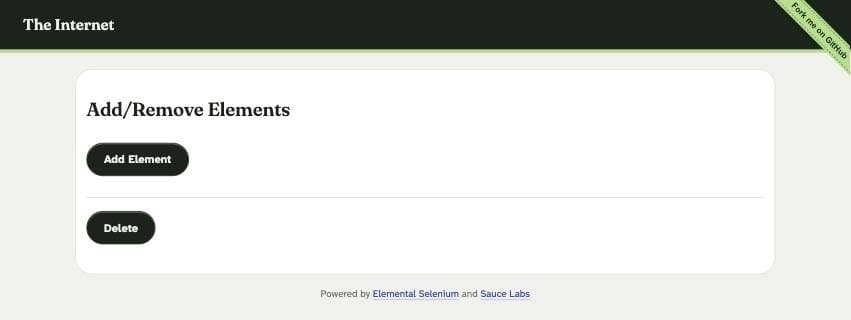
This is a small UI regression check. On a page you own or are authorized to review, the same pattern can help confirm that an action is present before a workflow starts and that it disappears after the expected step. The tool only records what its accessibility snapshot exposes; combine it with a screenshot and a human review when layout, color, or surrounding copy matters.
What it does not monitor
page_watch does not run on a timer. An agent must call compare to check a page, and the page must be open in Chrome at that moment. It does not send email or push notifications, keep a history of every comparison, or prove why a page changed.
The comparison matches controls by role, tag, and accessible name. Pages with repeated controls that share all three can produce ambiguous results. Some state also lives in accessibility attributes that a page's snapshot may not expose as a supported checked or disabled field. Selected tabs, visual changes, plain text changes, and custom controls may therefore be missed. Treat the result as a useful control-level diff, not a complete change detector.
The tool also avoids persisting typed values. That protects form contents, but it means it cannot tell you that ordinary text in an input changed. If a workflow depends on a form value, inspect it in the live session using an appropriate read tool and make sure your domain and data policies allow that access.
Try it with a narrow task
Start with the quickstart, pair Chrome, and allow only the domain needed for the page. Confirm that page_watch appears in the connected MCP tool list; availability depends on the server version you installed. Ask the agent to create a checkpoint, make one safe change on a public or test page, compare the checkpoint, and explain what the diff does and does not establish.
For a page that may contain personal or business data, review its domain permission before reading it. The security guide explains MCP Browser Extension's domain controls. For an end-to-end example, see Test web UI changes with page_watch.
FAQ
Does page_watch automatically alert me when a website changes?
No. It saves a checkpoint and compares it when an agent calls the tool. It does not schedule checks or send alerts.
Does a checkpoint save the page's text or screenshots?
No. It stores the page URL, title, and an accessibility snapshot of interactive controls. Use text-reading or screenshot tools for page copy or visual details.
Are typed form values saved?
No. Live form values are removed before the checkpoint is written. The tool still reads the page's accessible labels and supported control state, subject to your allowlist and configured redaction.
Can it detect every page change?
No. It is intended for supported interactive controls. Repeated controls with identical roles, tags, and names, custom accessibility states, selected tabs, and ordinary page text can be missed.
Set it up in a few minutes